WordPress Redirecting to Spam? A Safe Recovery Guide
Your site looks normal, but visitors land on suspicious pages. Learn how to record the symptoms, contain the problem and verify a WordPress recovery.
A customer tells you that clicking your website in search results opens an unrelated page. You type the address yourself, and everything looks normal. That difference deserves investigation: a successful visit from your own browser does not rule out a compromised website.
Start here: record the affected address and the time, contact your hosting provider, and preserve a copy of the site before changing files. If visitors are being sent to harmful content, ask your host to restrict public access while the issue is investigated.
Why can the redirect happen only to some visitors?
Malicious redirects can depend on a visitor's device, browser or referring page. Google documents cases where a search-result click sends someone to spam, while entering the same address directly does not. Attackers may also inject extra pages or scripts without visibly changing your homepage. See Google's explanation of hacked content and redirects.
An unexpected redirect is a symptom, not a diagnosis. Your developer should also check whether an intended redirect rule or a recent site change explains it. Avoid concluding that a particular plugin is responsible without evidence.
1. Record a useful incident report
Send your host or security provider a short report with these details:
- The exact page the visitor tried to open.
- Whether they arrived from search, a saved link or a directly entered address.
- The destination domain, if already visible, without opening it again.
- The approximate time and time zone, device and browser.
- Any recent updates, account changes or hosting alerts.
For example: "At 10:15 local time, a visitor using a mobile browser clicked our contact page in search and reached an unrelated domain. Direct desktop visits still work." This is more actionable than "the website is broken." Do not ask customers to reproduce a dangerous redirect or bypass a browser warning.
2. Preserve evidence before cleanup
Keep a restricted copy of the current files, database and available logs. Label it as potentially compromised so it cannot be mistaken for a safe restore point. Write down the symptoms and each change made during recovery. Our guide to hacked website warning signs lists the evidence worth keeping.
WordPress recommends documenting an incident and involving the hosting provider. If you do not have the access or experience needed to investigate, get help before deleting unfamiliar files. The official hacked-site recovery guide is a useful starting point.
3. Agree on a recovery plan
Ask the person performing cleanup to explain what was changed, what access was compromised and what evidence supports the suspected entry point. A useful handover identifies the affected files or settings, the recovery actions taken and any questions that remain unresolved.
Restoring an older backup may help, but its date alone does not prove it is clean. Recovery should also address the weakness that allowed the incident. WordPress advises reinstalling affected software from clean copies of the same version, changing passwords and replacing the secret keys in wp-config.php so that anyone still logged in is signed out. Removing one visible symptom is not sufficient evidence of complete recovery. If you bring in outside help for WordPress malware removal, ask for the same written handover.
4. Reduce the chance of a repeat incident
Keep WordPress, plugins and themes updated, remove unused plugins, and obtain software from trusted sources. Use unique passwords and two-step authentication for administrative access where available. Maintain separate backups and check that they can actually be restored. These measures reduce risk; they do not make a site invulnerable. WordPress covers these practices in its hardening guide.
Give each follow-up task an owner and a due date. "Developer will replace the unsupported extension before reopening" is a clearer commitment than "security will be improved."
5. Check Google Search Console after the fix
Review the Security Issues report for detected problems. Listed URLs are examples, so investigate the full issue rather than fixing only those addresses. Once all reported security problems are resolved, request a review and explain what you found and changed. Follow the steps in Google's Security Issues report documentation.
A clean report is useful, but it is not a substitute for checking your own files, access and site behavior. Warning removal and search visibility are separate outcomes; neither an immediate review nor a return to previous rankings should be promised.
A practical recovery handover checklist
- The originally reported symptom has been checked under the relevant conditions.
- The cleanup work and supporting evidence are recorded.
- Access changes and remaining remediation tasks have named owners.
- A usable recovery backup and monitoring arrangements are in place.
- Any Search Console issues have been addressed through the appropriate review process.
Before reopening or relaunching, work through our website security checklist. If you need help investigating an incident, contact MaxMindSecurity with the affected URL and a brief description. Do not include passwords, private keys or backup files in an initial enquiry.
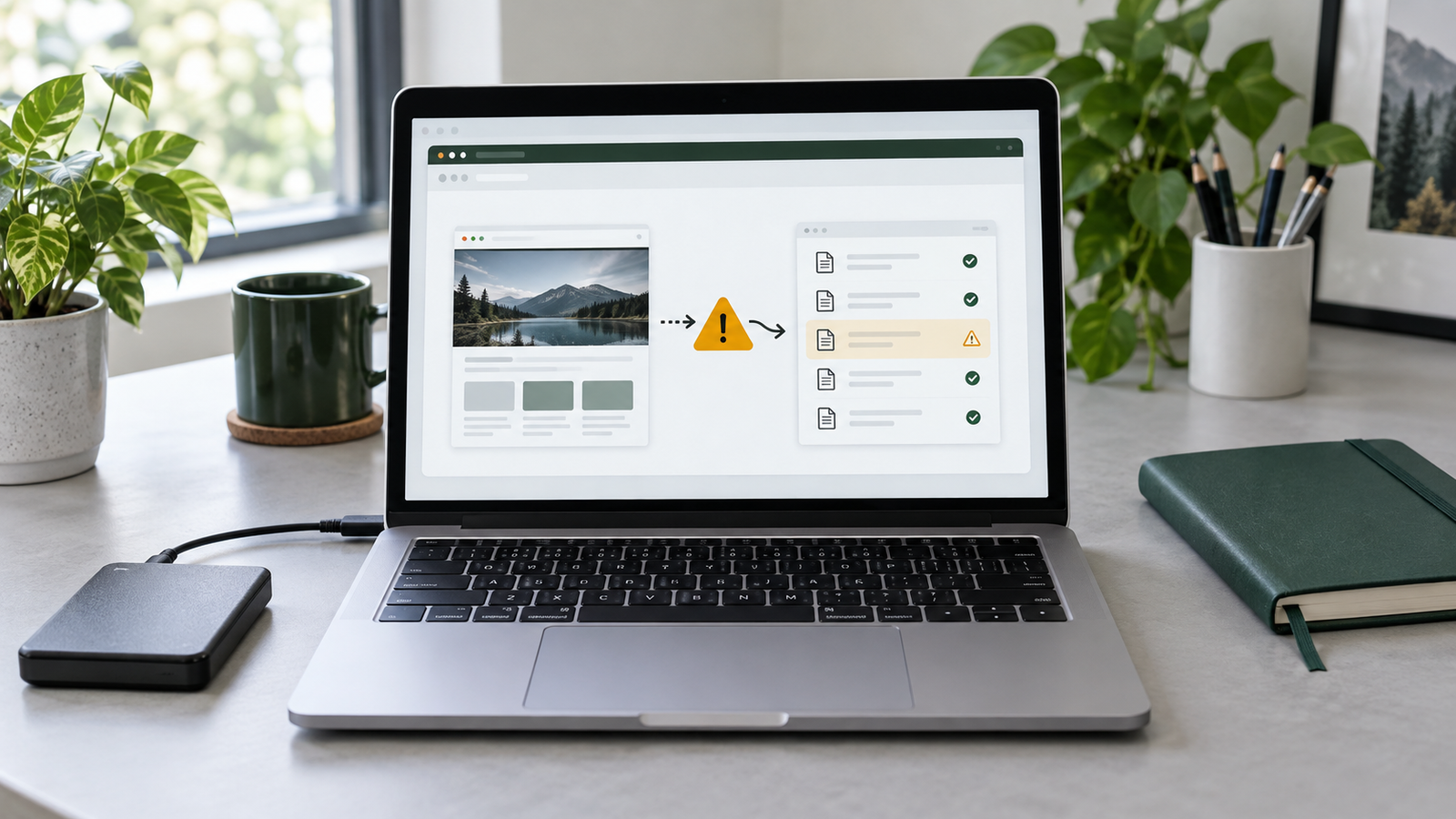
Featured image: AI-generated editorial illustration of website recovery checks, not a screenshot of a customer incident.